 NFC Expert
 How to use Samsung Pay?
As mentioned above, you can directly buy an Iota SIM card only at official dealer centers or Euroset or Svyaznoy stores, which are direct partners of the company. Buying from hands or not through an affiliated store is fraught with the fact that the client will receive a fake or stolen SIM card. In any of the cases, no one can guarantee the stability of work, in addition, there may be problems with the police and the former owner of the number.
The Service is an electronic payment made through the company’s mobile devices. Most smartphones and tablets support this option.
The service appeared in August 2015, after a Korean manufacturer bought a small company LoopPay in February.
She developed and implemented a new opportunity for the banking industry. The novelty is as follows.
The program creates a virtual magnetic strip, which is used on electronic means of payment when paying by terminal.
The technology is called Magnetic Secure Transmission (MST). It creates an emulation of a magnetic field, as a result of which the terminal takes this virtual field for a magnetic strip and performs a reading operation.
MST is completely related to another NFC technology. Translated from English means “near field communication” (Near field communication). It appeared in 2004, but has not yet received proper distribution.
Thanks to Samsung Pay, NFC has become more popular, as contactless payment only works when NFC is enabled. The range is no more than 8 centimeters, which is the optimal value for paying by phone.

After the option began to be actively used in the Russian Federation, the vendor organized an advertising campaign in support of its new technology.
Many services and goods were much cheaper when paying through Samsung Pay.
For example, a ride on the Moscow metro was half the price if the client paid using contactless payment technology.
Here is a short instruction on how to pay using the contactless payment system.
- The customer comes to the store’s checkout and waits for the employee to enter payment data into the terminal;
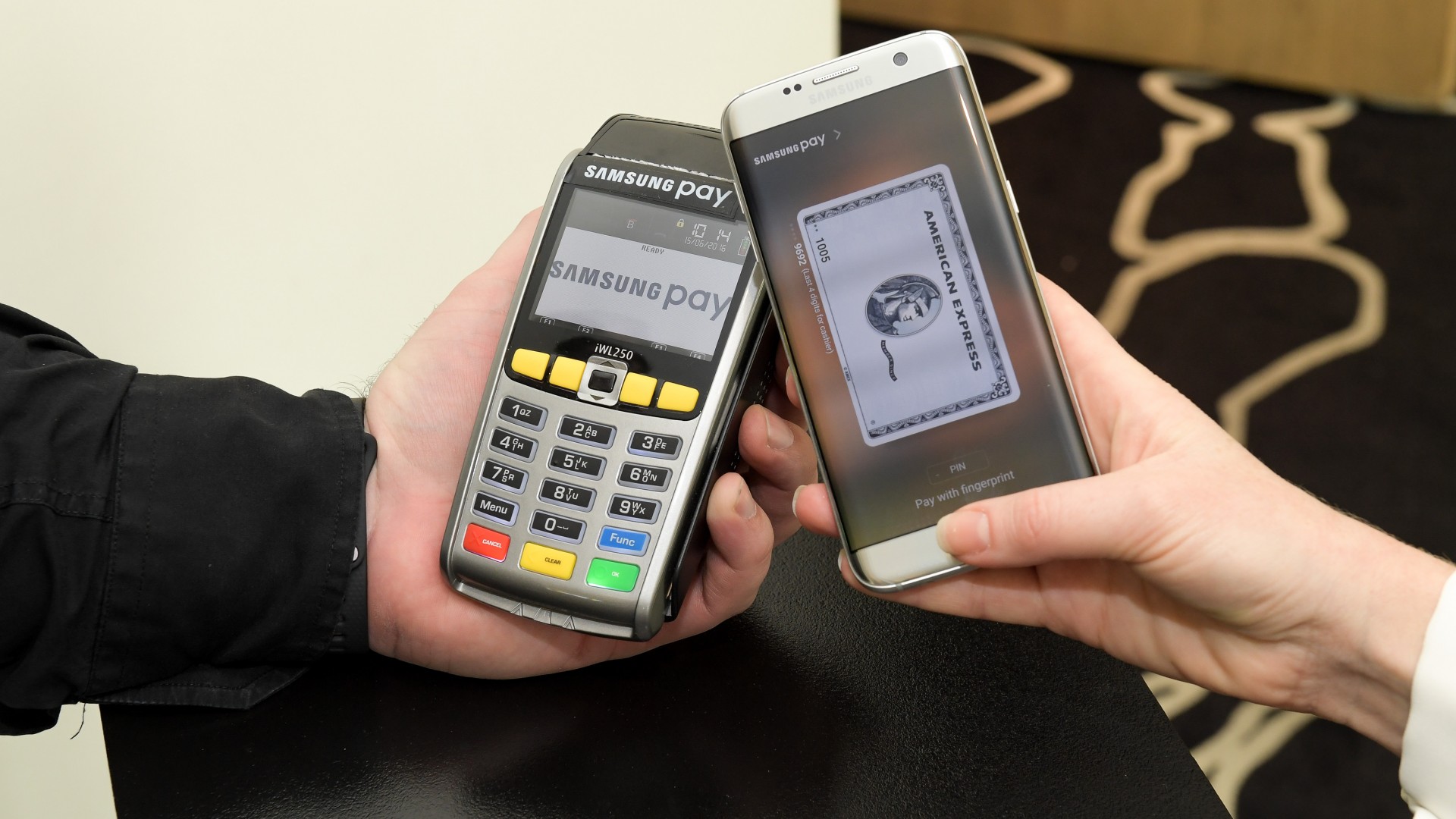
- After the cashier announces the final amount of the purchase, the owner of the smartphone swipes his index finger across the screen from the bottom up to activate the Samsung pay application;
- In the next step, the user brings the mobile device to the payment terminal, and waits until an inscription confirming the payment operation appears on the screen;
- The client puts the communicator in his pocket and takes the purchase.
Information about service centers can be found on the official website of the company.
By going to the site, the visitor indicates his device with which he had a problem.
Then he chooses the option he needs and clicks on it with the left mouse button. A list of mobile devices will be displayed on the screen.
Search uses special filters. The visitor can choose which SCs he is interested in: direct from Samsung, partner authorized centers, or both.
Detailed information is provided for each company. Worth a five-star rating. The more stars, the more customers liked the SC.
Below is the official portal address and contact phone numbers for more information. Some service centers have recommended visiting hours.
There are two links at the very end of the line. By clicking on the first one, the client will be shown the location of the service center on a schematic map, and the second one will help to get directions using the Yandex. Cards”.
Take the opinions of mobile device owners about the contactless payment service from the Otzovik website.
How to activate a Yota SIM card on a modem, PC, laptop
Settings → Cellular → Cellular data → APN “internet.yota”. The rest of the fields are left blank.
If you are faced with the task of activating Yota Sim-cards on a computer to work with a modem, take the following steps:
- Install the modem with the Yota provider’s SIM card connected to it into a free USB port.
- Next, the automatic driver installation process should begin. Please note that on different operating systems this takes place over a different period of time. With a timely update, there should usually be no unplanned problems.
- The next step is to activate and register your profile. To do this, you need to open any Internet page in a web browser. You will be automatically redirected to the official website of Yota, where step-by-step actions for registering a Profile and ways to fill in all the necessary data of the Personal Account will be described.
- After all the steps completed, you will receive an activated Yota SIM card, as well as logs and a password to enter your Personal Account.
The drivers have been installed and your modem should be registered in the operating system – a notification will appear in the lower right corner.
Installation and connection of this service must be preceded by introductory information that will allow you to evaluate the functional benefits of using this payment method. We suggest that you familiarize yourself with the main parameters of the service below.
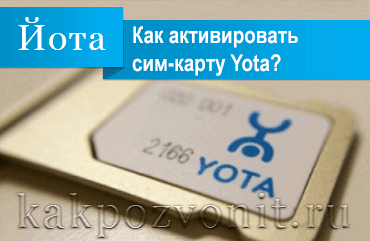
Since Yota SIM cards are mainly distributed through a mobile application, new subscribers of the operator receive “raw” SIM cards that are not ready for use. Unlike the traditional purchase of a card in a communication salon, when his employee inserts a new SIM card into the phone and performs the necessary manipulations to activate it, this moment is absent in the case of Iota.
Therefore, after purchasing an Iota SIM card, the subscriber needs to activate it himself. The process of setting up and preparing the card for work depends on the type of SIM card purchased – for a phone, tablet or modem. But in all cases it is extremely simple, as you can easily see now.
After inserting a Yota SIM card into a phone (or tablet), it is automatically registered in the operator’s network. After that, you need to open the Yota application and select the appropriate tariff. Here you can also change your phone number by choosing from free or paid options. The number change is quite fast – within 20 minutes.
After you have saved all the settings, your phone will receive the Internet and MMS settings. They need to save and reboot the phone. This completes the activation and configuration of the Iota SIM card.

If the Internet settings are not received or not saved, then the parameters will have to be entered manually. This is described in detail in the article “Internet settings and MMS Yota”. And in short, the whole Iota Internet setup comes down to creating an APN access point with the internet.yota parameter:
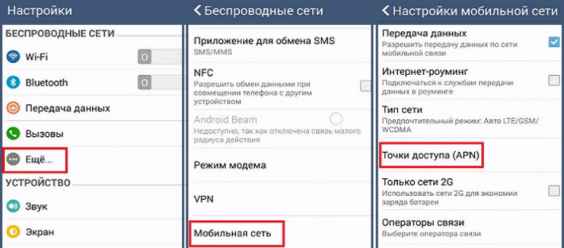
- On Android: “Settings” → “More…” → “Mobile networks” → “Access points (APN)” → “Create hotspot”.
- On iOS: Settings → Cellular → Cellular Data → Data Options → Cellular Data.
- On Windows Phone: “Settings” → “Network and wireless” → “Cellular network and SIM card” → “SIM card settings” → “Internet hotspot” → “Add Internet hotspot”.
After you have created the Internet Yota access point, activate it and be sure to restart your phone. Only after the device is rebooted, the entered parameters will take effect and Iota mobile Internet will work.
To do this, you only need to consistently and accurately perform certain operations.
- Update the operating system (firmware) of the device to the latest version.
- Create or log into an existing Samsung account.
- Find Samsung Pay on Google Play.
Here, owners of Samsung mobile devices may have a problem – the Samsung Pay program will not appear in the search results. There are 3 reasons for this:
- mobile device is not compatible with Samsung Pay;
- a non-original operating system (firmware) is installed on the smartphone (tablet);
- the operating system is intended for another country (may affect all unofficially imported devices).
- Install Samsung Pay on your mobile device.
Installation is automatic, you only need to agree to the terms and give permissions.
- Launch Samsung Pay. Start setting up the program.
An obligatory setting element is the definition of the method of identification in the system. This can be a fingerprint login, a PIN code, in some devices, an iris scan.
- Add cards for payments to the program.
At this stage, Samsung Pay can accept up to 10 cards at the same time. Adding a card is possible in two ways:
- scan (take a picture) of the card in the program;
- or enter card details manually.
The process of adding a card will take a few minutes until the system contacts the bank and passes the necessary checks and confirmations.
- Accept the user agreement.
- Receive an SMS message from the bank. Enter the received and send the code. If necessary, sign.
- Wait for a response and complete the registration.
Unlike most mobile operators, Iota SIM cards are issued for a specific device. They are not sold by hand or in small non-specialized stores, but are activated only by manual setting. On the one hand, such a procedure complicates the process of preparing and launching the device for work, but this guarantees the legal registration of the client according to the passport and his good faith regarding the contract with the operator (specifically, we mean the distribution of Wi-Fi without a modem, since separate prices for this are provided for such use of traffic).
A significant plus that the cellular network offers is that money is credited to the account immediately. This means that after purchasing an Iota SIM card, the client does not need to transfer money additionally to use the services. How much does an Iota SIM card cost: all types are sold at a single price – 300 rubles, which are immediately returned to the owner to pay for calls, SMS or the Internet. In addition, you can order the delivery of a SIM card to your home or office.
Iota SIM cards are not sold as numbers of other operators: they can be purchased through the company’s corporate offices, ordered through the service on the website or partner salons Svyaznoy and Euroset. In this way, maximum transparency of the client and personal focus on the user are achieved. In addition, the use of cards for their intended purpose is controlled.
Activating a SIM card for a tablet (iPad, Android) is completely identical to a smartphone. You will need to buy a Yota SIM card, preinstall the program from the electronic store (GooglePlay, AppStore, Microsoft). Then it will determine the card itself, help you set up connection conditions, and you will be able to fully use communication services. If a failure occurs and activation fails, then we repeat the same steps as when setting up the smartphone (manually register the access point).
Activating a modem or router is easier because no third-party software is required. The device (LTE modem) must be inserted into the computer’s USB port (Iota’s SIM card is already inside). The automatic download of drivers will start, which may take some time, it depends on the strength of the network signal. After that, you should open any browser that will automatically go to the site page.

But since the Iota card has not yet been activated, you will have to access the Internet from another operator or via WiFi. Immediately after the first login, you are given a phone number that will be assigned to your SIM card.
The rest of the settings for MMS and Internet connection usually come automatically, but failures may occur, then you need to change the settings yourself.
In the application, you can change your phone number: choose from paid and free ones, which one you like. Within 20-30 minutes it will be already active. You can change your phone number every 10 days. It can also be used to contact a consultant via online chat.
So, the first step – getting a number, you have already done. Then follow the instructions: specify the correct settings, connect to the Internet via Sim.
Android: go to the smartphone menu, select “Settings”, then “More”, “Mobile network”, then “Hotspots”, click “Create hotspot”, first enter its name YOTA, eventually indicating in line APN “internet.yota”. Leave the other fields blank.
How useful is Samsung Pay?
The service is convenient because you can pay by bank transfer using only your smartphone.
Phone owners no longer have to look for a bank card to pay through the terminal. You just need to activate the application and make a payment. The action will take no more than one minute.
Such a service will save time on shopping, you will no longer have to stand in lines, waiting for sellers to find change for the buyer. Payment is instant.
There is a function to save payments. All financial transactions that are made using Samsung Pay are stored in the application.
At any time, the owner of the communicator can open the history, and track the history of purchases.
The application can store an unlimited number of payment cards. Thus, the client can load all his cards into the program and no longer carry them with him.
Technology safety

When using Samsung Pay technology, many smartphone owners have a question – “How safe is it to use such a function?”.
The Korean vendor has set the following three rules to help protect data during payment and prevent hackers from gaining access:
- Tokenization. During the payment operation, a one-time security token is received from the mobile device, which can only be accepted by one terminal. It is generated randomly. Its main purpose is to hide the bank card code, all data inside it is encrypted. Thus, the transfer of payment details to the terminal is fully encrypted, and excludes the possibility of hacking;
- KNOX. A special technology that was developed by Samsung to protect their data. The technology is a “sandbox”, that is, it is an isolated virtual space in which all financial transactions or any other user actions take place. Using KNOX allows you to reliably protect the data of smartphone owners from intruders;
- Confirmation of debiting funds from a means of payment passes either by a fingerprint or through a PIN code. The restriction only works when paying more than 1000 rubles. Accordingly, the withdrawal of funds will not occur without the permission of the user.
The Samsung Pay payment service works not only with terminals equipped with NFC technology. A number of mobile devices of the Samsung Galaxy line are able to generate a variable field, like a magnetic strip of a bank card. This is Samsung’s own MST technology, which allows you to pay at legacy terminals where standard NFC technology is not available.
And that’s not all. You can add several bank cards to the application at once, for example, for receiving salaries and purchases with cashback.
The service makes it easy to pay for purchases on the Internet. In this case, you do not need to enter bank card details on the site. Simply select Samsung Pay as the payment method in the online store, click on the “Pay” button and enter your Samsung Account (email address). Then a payment request will be sent to the smartphone.
The service is also available to users to pay for purchases through mobile applications. With it, you can purchase train or plane tickets thanks to integration into the Russian Railways Passengers and Aeroflot applications.
Use Samsung Pay securely: thanks to advanced security algorithms, an attacker cannot simply take and gain access to your card. It will be easier for him to steal a wallet with cash than to try to deceive the payment service. Three-level protection in the application helps to ensure the security of all operations.

The Samsung KNOX platform is responsible for security at the software and hardware levels, protecting the mobile device from unauthorized access and malicious attacks. Therefore, security is another weighty argument in favor of contactless payment for purchases.
How to activate a Yota SIM card on a phone, tablet with OC Android-
Unfortunately, the company had to abandon unlimited mobile internet in 2019. This is due to the fact that for the entire duration of the unlimited packages, the average amount of traffic used was around 5 GB. Such a low figure made it possible to switch from unlimited to lower subscription fees.
How to register in the application?
After the application has been installed on a mobile device, launch it and go through registration. Two options are possible. The first case is when the client already has an account on the Samsung domain, and the second is when the user purchased a mobile device from a Korean company for the first time.
Let’s first look at how to set up a Samsung Portal account. If the owner of the smartphone already has it, go to the next step.
- On the mobile device, open the “Settings” menu, go to the “Accounts” section. Next, click “Add an account”;
- In the window that opens, select the line, as shown in the screenshot below;
- In the window that opens, select the item “Create an account”;
- The main window with registration information will be displayed on the communicator screen. We begin to fill in the following.
First, the client comes up with an account name. It can be arbitrary, as long as it is easy to remember and unique.
In the next two lines, enter the password and its confirmation. It should be designed according to the recommendations below.
To check the entered data, the user can activate the “Show password” option. The screen will display the data specified in the corresponding fields.
Next, fill in the information about the year of birth, indicate the full name of the owner of the phone. This information is necessary so that if the mobile device is lost, the owner can get it back.
How to order a Yota SIM card
If the information contained on the card is written to the mobile device, the devices that read the card can also read the phone.
Samsung Pay works with payment terminals using two technologies:
- Near field communication (NFC) – data transmission over very short distances, acts like bluetooth, but in the “near field”. Accepted by specially equipped new terminals.
- Magnetic Secure Transmission (MST) – secure transmission of the magnetic field. Works with terminals that accept magnetic stripe cards (there are many of them).
Then the payment data is transferred to the bank, checked and become the basis for transferring money.
Samsung Pay is a program installed on your phone that uses bank card information for money transactions. However, other phone systems and Samsung do not receive information to access card account money.
In order for the Samsung Pay contactless payment service to work, it must be supported not only by the phone, but also by the user’s bank. At the moment, the following payment cards can be connected to the service:
- Alfa-Bank (MasterCard and Visa);
- Tinkoff Bank (MasterCard and Visa);
- VTB24 (MasterCard and Visa);
- Rocketbank and Tochka (MasterCard);
- Yandex (MasterCard);
- Raiffeisenbank (MasterCard and Visa);
- MTS-Bank (MasterCard and Visa);
- Sberbank (MasterCard and Visa, except Electron series);
- Bank Saint Petersburg (MasterCard);
- Russian Standard (MasterCard);
- “Opening” (MasterCard and Visa);
- BINBANK (MDM Bank cards)
In the future, the list of banks and cards will expand. Contact your bank support for detailed information about the support of this service.

You can also register a virtual card in the Samsung Pay software. The principle of registration is similar to the process for standard bank cards, but there are some differences.
Firstly, the details of the payment instrument are generated by the vendor, without the participation of the user. This guarantees a high level of reliability of the generated data.
Secondly, the service of such a card is completely transferred to the side of Samsung. That is, the user no longer needs to change it, contact the representatives of the financial institution in case of any problems.
Thirdly, the virtual payment instrument will allow the client to secure his payments in the global network. If he suspects that he has been hacked, just go to the Samsung Pay program and block the current virtual card.
iOS: after the “Settings” field, select “Cellular”, the item “Cellular data”, the APN input line will appear, in which specify: internet.yota. Leave other items blank.
How to activate Yota SIM card on phone
You can now pay with Samsung Pay on one of the following Samsung Galaxy models: S7, S7 Edge, A3(2017), A5(2016/2017), A7(2016/2017), Note 5, S6 Edge , S6 Edge and S6. Interestingly, on the last two devices, payment is made only using NFC technology. Versions of Samsung Galaxy A3 and A5 2015, as well as S5 and Note 4, the service is not available.
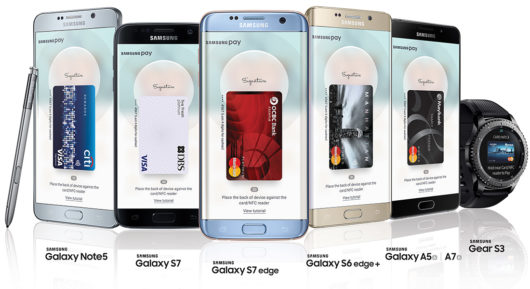
List of devices supporting Samsung Pay

Unlike Google Pay, which works on any modern smartphone with NFC, Samsung Pay payment service is available only to users of Samsung smartphones. At the same time, only relatively recent models are supported. Below we provide a complete list of devices on which you can use this service.
| Galaxy S10e (SM-G970F) Galaxy S10 (SM-G973F) Galaxy S10 (SM-G975F) Galaxy S9 (SM-G960F) Galaxy S9 (SM-G965F) Galaxy S8 (SM-G950F) Galaxy S8 (SM-G955F) Galaxy S7 edge (SM-G935F) Galaxy S7 (SM-G930F) Galaxy S6 Edge (SM-G928F) Galaxy S6 (SM-G920F) – NFC only Galaxy S6 Edge (SM-G925) – NFC only | Galaxy Note9 (SM-N960F) Galaxy Note8 (SM-N950F) Galaxy Note5 (SM-N920C) Galaxy A70 (SM-A705F) Galaxy A50 128 GB (SM-A505FM) Galaxy A50 64 GB (SM-A505FN) – NFC only Galaxy A40 (SM-A405F) Galaxy A30 (SM-A305F) – NFC only Galaxy A20 (SM-A205F) – NFC only Galaxy A9 2018 (SM-A920F) – NFC only Galaxy A7 2018 (SM-A750FN) – NFC only Galaxy A8 (SM-A530F) Galaxy A8 (SM-A730F) |
| Galaxy A6 (SM-A600F) – NFC only Galaxy A6 (SM-A605F) – NFC only Galaxy A7 2017 (SM-A720F) Galaxy A5 2017 (SM-A520F) Galaxy A3 2017 (SM-A320F) Galaxy A7 2016 (SM-A710F) Galaxy A5 2016 (SM-A510F) Galaxy J6 (SM-J610FN) – NFC only Galaxy J4 (SM-J415F) – NFC only | Galaxy J7 2017 (SM-J730F) Galaxy J5 2017 (SM-J530F) Gear S3 classic (SM-R770) | frontier (SM-R760) Gear Sport (SM-R600) – NFC only Galaxy Watch (SM-R800N, SM-R810N) – NFC only Galaxy Watch Active (SM-R500) – NFC only |
It should also be noted that Samsung Pay will not work on rooted devices. In this case, restoring the standard firmware will not help. Rooted devices are permanently unable to use Samsung Pay.
What cards does Samsung Pay support
Most financial structures are ready to work with Samsung pay technology. From their point of view, this is a new technology that will completely replace the standard payment method in the near future.
List of famous banks:
- Sberbank;
- Alfa Bank;
- Gazprombank;
- Tinkoff;
- VTB24;
- Rocketbank;
- Russian standard.
Separately, I would like to mention the payment card of Sberbank – MIR. This is a new system that was developed in Russia. Mostly used by government agencies.
In 2017, a decision was made to launch a pilot project involving several banks from the list above. They introduced the possibility of using the MIR payment system for contactless payment via Samsung Pay.
After successful testing, the project was approved, and in 2018 the service became widespread. Today, most banks work with the MIR payment system as well as with others. Bank card holders can easily pay for purchases.
Why isn’t Samsung Pay working?
Once everything is set up, Samsung Pay is ready to go. To pay for purchases, you need to tell the cashier that you will pay with a card, and then swipe up from the bottom of the screen. This gesture will automatically launch the Samsung Pay app and get it ready to go.
After launching the application, you will need to log in using one of the configured methods. This could be an iris scan, a fingerprint check, or a PIN code. After authorization, the phone must be brought to the payment terminal.
To pay using NFC technology, the phone must be brought to the top of the terminal.
If the terminal does not support contactless payment using NFC, then the phone must be brought to the magnetic stripe reader (on the right side of the terminal). In this case, the payment will be made using Samsung MST (Magnetic Secure Transmission) technology, which emulates the magnetic stripe of a payment card.
After that, the terminal should fix the payment, and a corresponding message should appear on the phone.
There may be different nuances during the payment process. Here is some of them.
- If the total amount is more than 1000 rubles, the user will have to confirm the payment: put a finger on the sensor on the phone or enter a PIN code;
- From time to time, terminals lose contact with the financial structure, which, as a result, leads to a delay in confirmation of payment or refusal by banks. In such cases, it is recommended to try again in a couple of minutes to make a payment;
- There are not enough funds on the linked card. In this case, first of all, it is recommended to check the current balance of the client. And then try to use other cards, since by default only one card is used in the settings of the Samsung Pay application;
- The customer purchased the phone from other than authorized Samsung partners. That is, he acquired a “gray” mobile device. In such situations, when registering in the Samsung system, the user will receive a message stating that the smartphone does not support the contactless payment option;
- The firmware of each phone needs to be updated periodically, which contains the necessary data. It is recommended to regularly update the operating system and applications used to maintain relevance and new features;
- From time to time, the NFC adapter stops working properly. You just need to restart your mobile device to check its status. If it still does not work, then it is recommended that you contact an authorized service center to resolve the problem.
Samsung Pay is a mobile payment system of a Korean company. Its main feature is the ability to make payments through terminals equipped to interact with magnetic tape cards that are familiar to many. To do this, in modern Samsung smartphones that support working with the service, MST technology is implemented.
With its help, the phone generates an alternating current, thereby creating a field that can change dynamically. It operates approximately at a distance of 8 centimeters from the reader. At the same time, the terminal is sure that the payment is made with a conventional magnetic card, so there is no need to re-equip it.
Samsung support
If a user has problems with a mobile device or Samsung Pay technology, he can contact the vendor’s contact center.
The subscriber dials the number and talks about his problem. If a contact center employee can solve his problem, he tries to help the client. For example, to advise how points are awarded for the Gold status when buying through Samsung pay.
If the issue cannot be resolved immediately, then the subscriber is addressed to the next support line. The company’s employees are highly qualified specialists, and always try to help users solve the current problem.
You can also contact the contact center in other ways. Let’s talk about each in more detail. There is a link to the chat on the official website of the vendor.
User clicks “Start Chat”. A new workspace will open in which you need to fill in the following lines
The client enters in the “Nickname” field the name that will be displayed in the chat. The following two fields to fill out are optional, but they can speed up the response in case of a problem with a technical device. It is recommended to specify parameters.
After that, the user accepts the agreement, and clicks “Start”. He will have access to an online dialogue with a support staff member.
The second way to contact the call center is by e-mail.
By clicking on “Write a letter”, the visitor is sent to the site with a choice of one of two categories: general or technical. After activating one of the options, the user gets access to the form for sending a letter through the vendor’s website.
The client specifies the type of request, and then enters his name. As means of feedback, you must specify an e-mail and a contact phone number.
The second part assumes that the client provides detailed information about the problem that has occurred.
The top field serves as the heading of the letter, and in the message the user talks about the problem that has occurred. If the client needs to upload screenshots, then you should use the appropriate field below.
After that, the user optionally confirms his consent in the fields below, and clicks “Submit”.
The answer will come within a few days. If necessary, the client will be contacted at the specified phone number.
Samsung also has social media accounts.
The user follows the link and asks his question in private messages. Operators are almost constantly online and are ready to provide a detailed answer to the question asked.
Benefits
Here are the positive aspects of using Samsung Pay compared to other similar services:
- Samsung designed this technology to support not only bank cards with a chip, but also old-generation magnetic stripe payment instruments. MSD technology generates a virtual field identical to the magnetic one, as a result of which the terminal accepts it;
- Samsung’s unique development called KNOX is a virtual isolated space that can protect the user when using Samsung Pay. This technology conducts all financial transactions in its environment, and, in case of suspicion of hacking by an attacker, simply blocks access to other smartphone functions;
- When using contactless payment technology, smartphone owners receive bonus points in partner stores or from participants in promotional programs. Accumulated bonuses can be spent in the official Samsung store;
Conclusion
Do not support Samsung Pay Sberbank Maestro and Visa. Today, this is only available for MasterCard and is supported by certain models of Samsung smartphones. Using Samsung Pay, a client can make payments almost everywhere (if there is a terminal) and not worry about the safety of their funds.
The article talked about contactless payment technology – Samsung pay. The user received detailed information about how the function works, how to use it and what problems may arise.
Described the bonus points that customers receive when using Samsung pay. Recommendations were also given for solving the most common difficult situations.